

AI across the study
AI that drafts the survey and writes up the results.
Survizo's AI drafts and translates your survey, writes your invitations, sums up what people wrote and said on calls, and writes the report. It reads one community at a time, and nothing it writes reaches members until your team sends it. Every saved report lists what it read and what it left out.
Before your survey goes out
Get a first draft of your survey, its translations and its invitation, ready to edit.
The AI suggests. You decide what goes into the survey, and you can edit every line it writes.
Draft from a research goal
Write what you want to learn, such as why people cancel after their second month, and the AI drafts the questions for you in the survey builder. They arrive in your draft with their answer options already filled in, ready to edit. A question where people pick a picture arrives with its labels, ready for your own images.
- Twenty-one question types
- Lands in your draft first
- Image choices wait for your images
Ask for changes in plain words
Select questions and say what should change, or ask for follow-up questions across the whole survey. The changes come back as a list, and each one waits for you to accept it. If the AI suggests a format outside Survizo's twenty-one types, such as a trade-off exercise, it flags it before anything is added, and one click leaves it out.
- Accept each change on its own
- Add follow-ups
- Anything unusual flagged first
Translate the survey
Write the survey once, and the AI translates it into as many of Survizo's twelve languages as you need. Wording your team has already corrected stays as they left it, because the AI only fills in what is still blank. Each suggested line waits for you to accept or reject it. Every language feeds one set of results, so you set up the survey and read the answers once for every language. Members choose from the languages you have added.
- Twelve languages
- Your edits are kept
- One export for every language
Draft your invitations
In the email composer, ask the AI to draft an invitation or any notification. It starts from your community's own welcome words and writes in your members' language. It writes only the lines you ask for. The branded header, footer and button are already in the template. You can also invite from your own WhatsApp Business number to people who have opted in. Survizo fills your community's name and join link into the message WhatsApp has approved for your number.
- Invitations and notifications
- In your members' language
- Your header and footer stay
Bringing in a Word survey
Turn the survey in your Word document into a draft you can edit, in four steps.
The import runs in the background, so you can keep working.
Choose the file
In the survey builder, choose Import from script and pick your Word file. It reads the whole document, so questions tucked into a header, footer, text box or numbered list still come across.
Read section by section
A long document is read section by section. A progress window shows which section it's reading and how many questions are in so far. If you cancel, you keep every question already in. If a section fails, retry just that section, and the failed attempt costs nothing from your allowance.
Your structure comes across intact
Your question codes stay as you wrote them. Your quotas, tracked values and skip rules come across too, even when a skip points to a question much later in the document.
A list of what to check
It lists any skip rule you still need to set. A minimum target, such as at least 80 owners, is listed too, so it never becomes a maximum by mistake. Any specialist exercise, such as a pricing trade-off, is listed so you can decide how to ask it. If the import finds too little to use, your draft stays as it was.
While answers come in
See what people keep saying, in their written answers and on calls.
Themes from written answers
For any question people answer in their own words, the AI sorts what they wrote into themes. You get a short list of themes, each with its mentions, its sentiment and a short quote. You also get an overall sentiment split and a short summary. When there are many answers, it tells you how many it read, so you know what the themes rest on. It also reminds you to check a quote against the original answer before you share it.
- Mentions, sentiment and a quote
- Says how many answers it read
- Verify before quoting
Insights from a recorded call
Get the key findings from any recorded call. Turn on transcription when you book the call, or start it later from the recording. When the transcript is ready, one click gives you the findings, each linked to the lines it came from. Press Play from here on a finding and the recording jumps to that moment. Every link is checked against the transcript. Speakers are shown as numbers, so no one on the call is named.
- Linked to the moment
- Play from here
- Speakers shown as numbers
Ask about a call or a report
Ask questions about any recorded call or saved report, and the chat answers from that call or report alone. Conversations are saved to your own account, so you can pick up where you left off. Each message uses one AI request from your monthly allowance, and the chat tells you so.
- Answers from one call or report
- Saved to your account
- One request per message
A worked example
See what you asked a report to read, and what it actually read.
The picture shows a report being set up in the product tour. Beside it is the record at the foot of every saved report, as the product prints it, with sample figures.
What you set
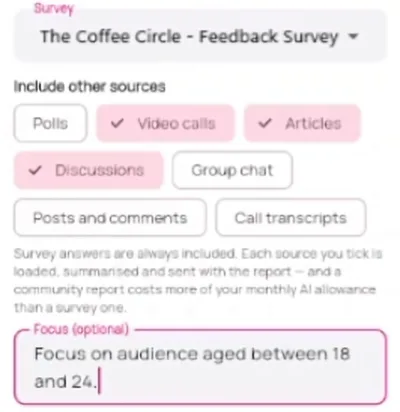
Survey answers are always included. Tick a source to add it, and use the focus line to steer the report.
What the saved report records
This report was written from partial data. The figures above cover only what is listed below, not the whole community.
| How this report was made | Recorded |
|---|---|
| Report type | Community report |
| Survey | The Coffee Circle - Feedback Survey |
| Responses analysed | 847 |
| Community sources included | Video sessions, Articles, Discussion rooms |
| Video sessions | 12 of 12 items sent to the model |
| Articles | 6 of 6 items sent to the model |
| Discussion rooms | 214 of 1146 items sent to the model, from 8 of 11 rooms |
| Analysis depth | Swift |
| Generated | 2026-09-30T14:05:12.000Z |
Illustrative figures. The record is part of the report, so it travels with a copy and with the Word export. The warning comes first whenever a source was only partly read.
Reports
A report ready to share, checked before it's saved.
What a report contains
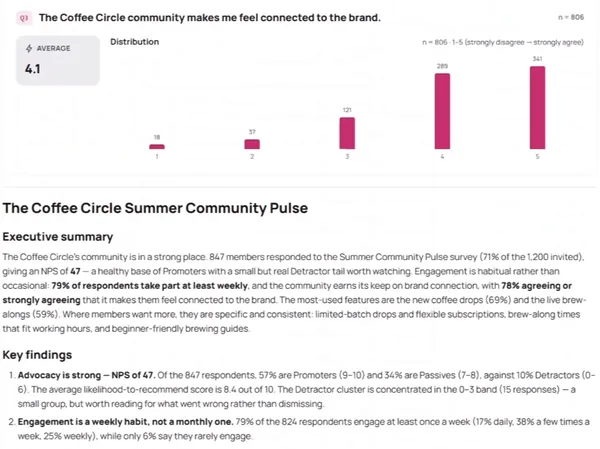
A survey report gives you a short summary, findings backed by the numbers, themes from what people wrote and two to four recommended actions. A community report also reads the calls, articles and discussions you pick, and points out where they agree and where they differ. You can copy a saved report or export it to Word.
- Summary, findings, actions
- Where sources agree and differ
- Word export
Checked before it's saved
People on a call appear only as numbered speakers, and a report refers to them as participants, so no one is named. If a community report comes back as anything short of a full report, Survizo throws it away, so you only ever save a real one. If the AI service fails, nothing is saved and your allowance stays as it was.
- Speakers stay anonymous
- Only real reports filed
- Failures cost nothing
Kept exactly as written
A saved report stays exactly as it was written, and you can copy it, export it or delete it. The list of what it read is part of the report, and a source with nothing in it is marked as empty.
- Kept as written
- Footer inside the document
- Partial data flagged first
What it reads, and what stays private
The AI reads one community at a time, and only for that community's owner and the clients and moderators currently on it. Reports leave private messages and complaints out, including private messages sent inside a call. The community's owner can still read private messages and complaints, to keep the community safe.
- One community per request
- Private messages stay out
- Complaints stay out
Depth, allowance and access
Choose how thorough the AI is, and who on your team can use it.
Three depths
Choose how thoroughly the AI reads, from Swift to Balanced to Deep, depending on your plan. You always see which depth will run before you start, and every saved report names it.
- Swift, Balanced and Deep
- The picker shows what runs
- Depth named in each report
A monthly allowance
Your account includes a monthly AI allowance. The figure next to each depth is what a request at that depth costs. If a request is turned down, Survizo says why in plain words, such as the tool not being in your account or this month's allowance being used up.
- Counted each month
- A refusal says why
- Failed requests cost nothing
Choose who on your team uses AI
For each colleague you add, you choose which AI tools they can use and how much of the monthly allowance they get. A tool you switch off is hidden from them and blocked if they try it anyway. Translation comes with the drafting tool.
- Three tools, granted one by one
- Checked when it runs
- Allowance per colleague
At a glance
AI across the study in six facts.
Your team decides
Members see AI drafts only after your team publishes or sends them.
Bring in your Word survey
Your question codes and quotas come across, and anything it missed is listed for you.
Twelve languages
The AI translates what is still blank, and you approve each line.
Reports your reader can check
Each report lists what it read, and how much of it, inside the document.
Jump to the moment it was said
Call insights link to the transcript, and you can play from there.
Each community kept separate
Each request reads one community, and private messages and complaints stay out.
Next up
Where to go from here.
Analysis and exports
Numbers you can stand behind, in files that match what you saw.
See how many people stand behind every chart, compare groups of members, and send PowerPoint, Excel and SPSS files that match the screen exactly.
Analysis and exportsSurveys and logic
Write your survey once. Each member sees only the questions meant for them.
Build a survey or import the one you wrote in Word. Members see only the questions meant for them, and each group stops at exactly the number you need.
Surveys and logicThe next step
Book a fit call.
Thirty minutes with the people who build Survizo. Bring a project you have coming up. You'll leave knowing whether Survizo fits it and how soon you could launch.