

Branding and white-label
Your customer community in your own brand, from the first email to the last screen.
Set your community's whole look on one screen, called the Designer. Upload a logo, choose your colours and write the welcome. Members, the customers who join, then see your brand on every screen, starting with the sign-in page. They see it in the browser tab, in every email and in the community's own web address.
A worked example
Set five things once, and members see them everywhere.
Here is a made-up coffee brand's community, The Coffee Circle, set up on the Designer's Branding tab.
What you set
| Setting | Value |
|---|---|
| Name | The Coffee Circle |
| Logo | A square PNG, under 5 MB |
| Primary colour | One of eight swatches |
| Tagline | The circle of great coffee. |
| Menu label | Surveys, renamed Tastings |
A made-up community and address.
What members see
- On coffeecircle.survizo.com the browser tab reads The Coffee Circle and shows its logo.
- The sign-in and sign-up pages and the loading screen carry the logo.
- Buttons and headers fill with your colour, unchanged. Their text turns white or near-black, whichever reads more clearly.
- The sidebar says Tastings where it said Surveys. The link and the icon stay the same.
- Invitation emails, verification codes and notifications arrive in your colour, with your logo in the same spot on every one.
- When a member adds it to their phone's home screen, the community installs under its own logo.
The Designer
Shape the whole look from one screen.
It has four tabs, called Branding, Pages, Info pages and Assets.
Name, logo and colours
Name the community, upload a logo, and add a tagline, a welcome line and the email address members write to for help. Choose a primary, a secondary and an accent colour from eight ready-made swatches, and use your exact brand shades on the designed pages. A preview card beside the form shows the header, logo, tagline, welcome and button as you type. Until you add a logo, the community shows its initials in its own colours.
- Eight colour swatches
- Logo, tagline and welcome line
- Live preview card
Your three designed pages
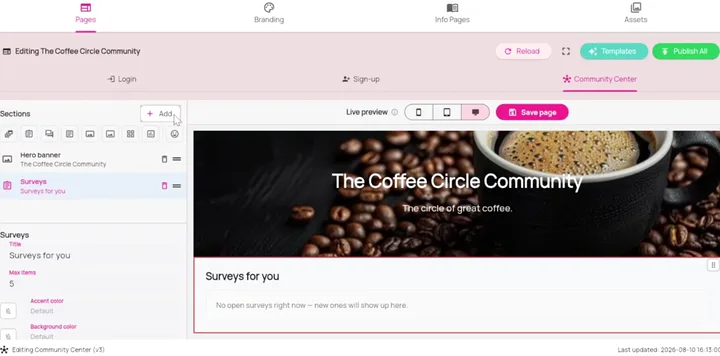
You design three pages from top to bottom. They are the sign-in page, the sign-up page and the Community Center, the home page members land on. Start from one of eight template packs. Then add, move and edit sections from 24 ready-made pieces, such as a large banner, text, a list of surveys, a post feed and the sign-in form. On these pages you can use any colour, including your exact brand shade, so each section can have its own background colour, image or gradient. The preview shows exactly what members will see, on a phone, a tablet or a computer.
- Eight template packs
- 24 ready-made sections
- Phone, tablet and desktop preview
Sign-in and sign-up pages in your brand
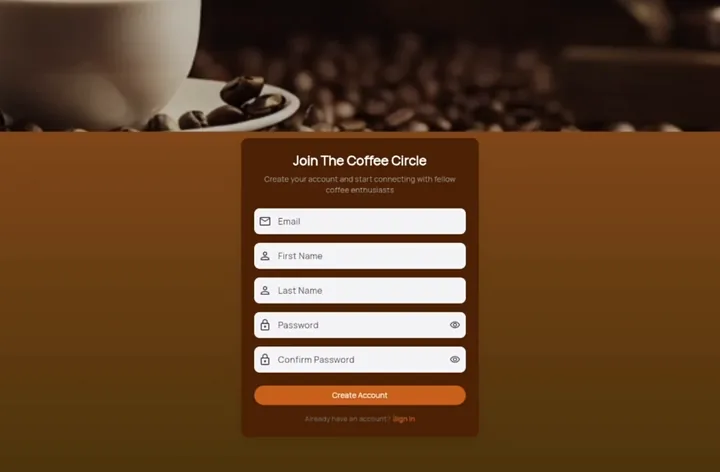
Give each page a background colour, image or gradient, or start from one of three ready-made backgrounds. The sign-in and sign-up forms take their own box and button colours, so they match the page. On the sign-up form you choose which fields to ask for, such as first and last name, a username and a password confirmation. One switch adds social sign-in buttons, and they appear only where they will work, so members never meet a button that fails.
- Three built-in backgrounds
- Colour, image or gradient
- Social sign-in switch
Help pages and images
Write your own FAQ, terms, privacy, cookies and contact pages, which members open from inside the community. Leave one blank and members see the built-in text, so no page is ever empty. Assets is the community's image library. Upload an image once, up to 5 MB, and reuse it on your pages and in your emails.
- Five info pages
- Ready-written text until you add yours
- One image library
In a study
Brand a single survey, and name the menu in your members' words.
One study, another brand
Give a survey its own logo, accent colour and background colour, right where you build it. A survey for one product or client then carries that brand, while the community keeps its own look. Each setting starts with the community's look, and one click resets the logo and both colours. Text colour adjusts itself to stay readable. The preview shows the survey exactly as members will see it.
- A logo and two colours per survey
- One click back to the community look
- Preview exactly as members see it
Words your members recognise
Rename any of the eight items in the member sidebar, so Surveys can be Studies and Discussions can be The Lounge. Only the name changes, and everything else about the menu stays as it was. Choose which of twelve languages members see first. A member who has picked a language of their own keeps it.
- Eight renamable menu items
- Twelve languages
- A member's own choice wins
Eighteen kinds of email, all in your colours.
Every email looks like yours
All eighteen emails a community sends share one design, from the invitation and verification code to fifteen kinds of notification. Your logo, or your initials until you add one, sits in the same spot on every email. Your colour leads the header and the button, with the text on it chosen to stay readable. A community in a right-to-left language sends right-to-left email throughout. You can also invite people who have opted in from your own WhatsApp Business number, with the community's name and join link.
- 18 email types
- Right-to-left languages included
- Unsubscribe footer always there
Write every email in your own words
See all eighteen emails in one list, each previewed in your branding. Build the invitation and sign-up reminder piece by piece, with headings, text, buttons and images, and send yourself a test before it goes out. For the verification code and every notification, you set the subject line and the key wording members read. Ask the AI for a draft and it starts from your tagline and welcome, in your members' language. One click puts any email back to the original. Your header, the links, the code and the unsubscribe line stay locked, so no edit can break them.
- Build invitations piece by piece
- Test send for invitation and reminder
- Reset to default
Send from your own address
From day one, notification emails show your community's name as the sender, sent from a Survizo address. Invitations come from Survizo Invitations until you add your own. To send from an address of your own, type it in and confirm the link that arrives there. From then on, invitations and other community email go out from it. Remove it at any time and the community returns to the standard sender.
- Your community's name on notifications
- Your own address, once confirmed
- Removable at any time
The address, and what stays the same
Your own web address, and every screen finished for you.
The web address
You claim a community's address when you create it, in the form yourname.survizo.com. Every address is yours alone, and it is secure from the first visit with nothing for you to set up. The Branding tab shows it with a copy button. It stays the community's address for good, so every link you share keeps working.
- yourname.survizo.com
- Secure from the first visit
- Chosen once, kept for good
What stays consistent
You set the colours, the logo, the words and the layout of the three designed pages. The typeface and the layout of every other screen are set for you, so every page a member opens looks finished and consistent. Each community keeps its own look, so changes to one never appear in another.
- Your colours and content
- The platform's typeface and screens
- No look shared between communities
Where Survizo's name appears
Your brand leads everywhere, and our name appears in just four places.
Here are the four, plus a note on the invitation footer, so nothing surprises you.
- The platform's privacy notice and terms. Members can open them when they join and from their privacy settings. They carry our name because they are our own notice to members. A line under the notice gives our support address for anyone who wants it explained in another language.
- The verification code email. The message carries your brand, and it's sent from our address under the name Survizo. If the branded version is ever unavailable, a plain backup version goes out instead, and it names us too.
- The sender of invitation and sign-up reminder emails, which is Survizo Invitations until you confirm an address of your own. WhatsApp invitations come from your own number from the first message.
- The invitation footer is the exception. It shows only the words you write in it, so it names nobody unless you do.
- The web address, which ends in survizo.com.
At a glance
Branding and white-label in six facts.
Your logo everywhere
Every community screen, the sign-in pages, the browser tab, the home-screen icon and every email.
Colours that stay readable
Three colours from eight swatches, shown exactly as chosen, with text that always stays readable.
Three designed pages
Sign-in, sign-up and the Community Center, from eight template packs and 24 blocks.
Your members' words
Eight renamable menu items, five info pages and twelve languages.
Eighteen branded emails
One design, editable wording, and an unsubscribe footer that always stays.
Its own address
yourname.survizo.com, secure from the first visit, with a look no other community shares.
Next up
Run more communities, and bring people in.
Many communities, one account
Every client, brand and market. One login, and no client ever sees another's community.
Run a community for every client, brand or market from one login. Each keeps its own address, members and settings, and clients see only what you grant.
Many communities, one accountMembers and consent
Invite your own customers, and keep proof they agreed.
Invite your customers by email and WhatsApp, choose who joins, and keep a timed record of the exact wording each member agreed to.
Members and consentThe next step
Book a fit call.
Thirty minutes with the people who build Survizo. Bring a study you have coming up. You'll leave knowing whether Survizo fits it and how soon you could launch.