

Analysis and exports
Numbers you can stand behind, in files that match what you saw.
Every chart shows how many people it rests on, so you know which findings will hold up in the meeting. Split results by a question or a group of members, compare groups side by side, and see which answers rise and fall together. Then send a PowerPoint deck, an Excel workbook, an SPSS file or a CSV, each showing the same percentages you saw on screen.
The workspace
See a survey four ways, and split the results with one choice.
Charts, comparisons, answers and saved groups
Pick a survey and the top of the page tells you how many people took part, how many answers came in and when the last one arrived. The Results tab gives every question its own chart. The Explore tab compares one question's answers against another's. The Data tab lists every answer in a table, one row per person, ready to search and sort. The Segments tab keeps the groups of members you've saved.
One filter at the top splits the first three tabs together. Split by a question with set answers, a member detail or two saved groups, and every chart updates at once. Tap 1000+ beside any large survey to see its exact count, and the results page keeps that figure from then on.
- Four views of one survey
- One filter moves every chart
- Exact counts in one tap
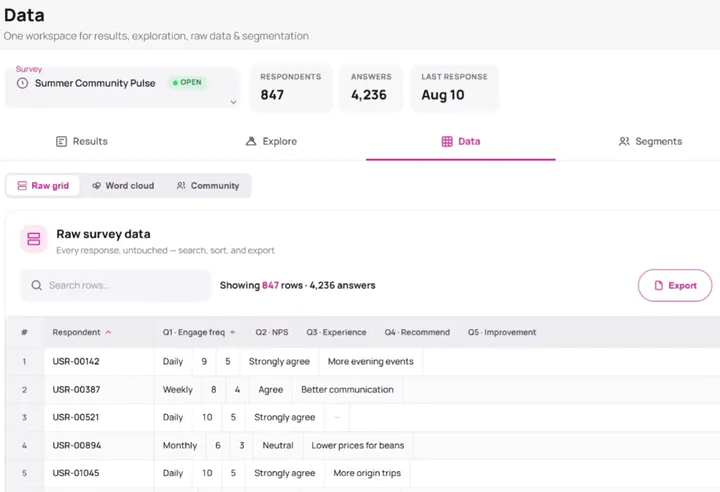
Know how many people stand behind every chart
Each chart on the Results tab shows how many people answered, marked n, beside the question's short code. Where people can pick several answers, each bar shows the share of people who chose it. A note warns that the bars can add up to more than 100%. In a question that rates several items, each item shows how many people rated it. Any chart resting on fewer than ten answers is marked Low base, so you spot a thin result before anyone quotes it.
Every question type gets the summary that suits it. A ranking shows how often each item came first, beside its average position. A slider or a number shows its average, middle and range. A date shows the earliest and latest answers with a count for each month. A heat map shows how many clicks landed on the image and how many people made them, with clicks outside the image counted on their own.
- People counted on every chart
- A count for every rated item
- Under ten answers flagged
A worked example
Follow one question from the screen into every file.
Take one question with the short code Q1, where each person picks a single answer. Here is what it becomes on screen and in each download. The question is an example, and every file below is exactly what Survizo produces.
What goes in
Q1 How often do you take part in the community?
Daily · Weekly · Monthly · Rarely · Never
Leave out the code and Survizo uses the question's place in the survey, such as Q4.
The five answers and the 847 people who gave them come from the product tour's demo study.
What comes out
| Where | What Q1 becomes |
|---|---|
| Results tab | A chart of the five answers with counts and shares, under n = 847 |
| Workbook, Topline | One row per answer with its code, count, percentage and the number of people behind it |
| Workbook, Data | A column named Q1 holding 1 to 5 for each person |
| Workbook, Datamap | Q1, its wording, its type, then 1 = Daily through 5 = Never |
| SPSS file | Q1 with its wording and five answer labels, marked as a category question |
| Slide deck | A slide titled with Q1 and its wording, with the number who answered (847) printed under the chart |
| Topline CSV | The same rows as the Topline sheet, each starting Q1 |
Explore
Pick the questions to compare, and Survizo chooses the right chart.
See how different groups answered the same question
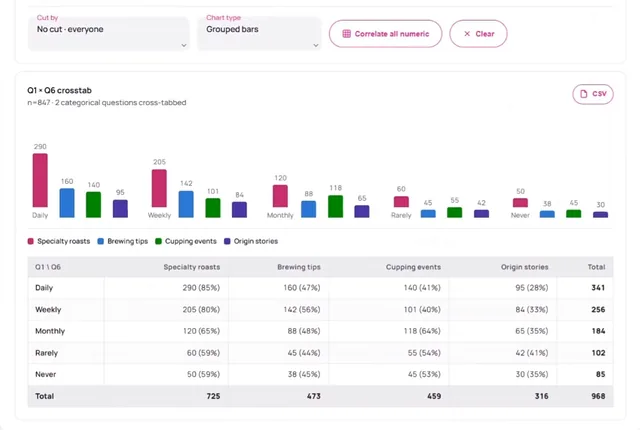
Pick one question to see how its answers spread, then split it by another. Pick two questions with set answers and see one broken down by the other, as side-by-side or stacked bars above a table of counts and percentages. Pair a number question, such as how much people spend, with a choice question to see the average for each group. Pair two number questions to see them plotted against each other, with a trend line and two scores for how closely they move together.
Each row of a grid question and each card in a card set works like a question of its own, so you can compare it with any other. Every chart downloads as a PNG image or as CSV, ready for a slide or a spreadsheet.
- Grouped, stacked or 100% bars
- Group averages and trend lines
- PNG or CSV per chart
Answers that move together, with a warning when data is thin
Pick three or more number questions, or press Correlate all numeric, and a colour-coded grid shows which rise and fall together. Switch between Pearson and Spearman, the two standard measures, in one click. Hover a square for both scores and how many people answered both. Tap it to plot the two questions against each other.
When two questions share too few answers to measure, the square shows a dash in a neutral colour. The dash keeps a gap in the data from being read as proof that two answers are unrelated. The workbook includes both scores and how many people answered each pair, and the deck shows the dash with a note explaining it.
- Pearson and Spearman
- A dash, never a false zero
- Answer counts in the file
Segments
Save a group of members once, then compare it on any question.
Build a segment and watch the count as you go
Build a segment from members' profiles, the details your community collects, when they joined or last visited, how they take part, or their answers in any survey. Choose whether members must match all the conditions or any of them. The editor counts the matches while you build, so you know the group is big enough before you use it.
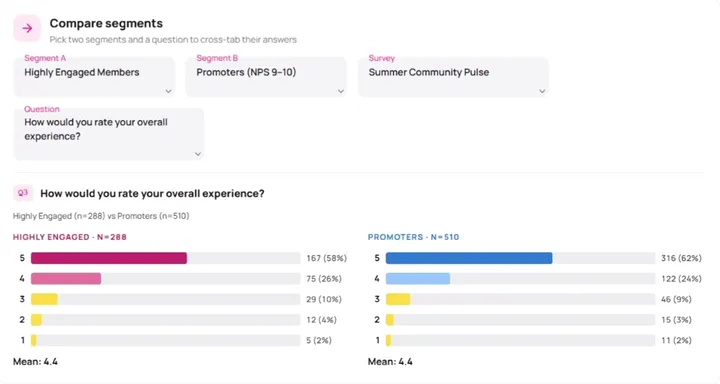
The Compare view puts two segments side by side on any question you pick, each showing how many people are in it. You can also filter the whole workspace by two saved segments. A workbook you then export names both and their sizes on its first sheet, and the deck marks its title slide Filtered. Download any segment's members as a CSV file, and press Refresh now to update the count whenever you like.
- Profile, behaviour and answers
- Two segments side by side
- The filter named in the file
The files
Files that match the screen, figure for figure.
The workbook, the SPSS file and the deck are all built from the numbers the workspace computed. A figure on a slide is the same figure in the workbook, and answers appear in the same order on screen and in every file.
The Excel workbook
Every workbook opens with an Overview sheet naming the survey and the community, with the number of responses and when the file was made. The Topline sheet sums up every question with its count and percentage and, beside each percentage, how many people it was worked out from. Anyone who doubts a percentage can check it in the next cell.
Export from the Explore tab and the workbook adds your group comparisons, in counts and percentages both ways, plus a sheet showing which answers move together. Export from the Data tab and it adds a Data sheet of answer codes, one row per person. Each row also shows the language the person answered in and the consent notice they accepted. A guide sheet, the Datamap, explains every question's wording, type and answer codes.
- How many answered, beside every share
- Codes in Data, labels in Datamap
- Language and consent columns
The SPSS file
Your analyst gets an SPSS file with one row per person and one column per question. The question wording and answer labels come set, and each question is marked as a category, a rating or a number, so your analyst starts straight away. Each multiple-choice option gets its own column, holding 1 when chosen. A skipped question stays blank, so it never drags an average towards zero. Download it from the Data tab, and choose for each community whether it is offered.
- One row per person
- Labels and question types set
- Skipped stays blank
Editable slides, CSV, images and Word
Every chart and table in the PowerPoint deck is a real PowerPoint chart, so your team can edit and restyle it like any other slide. The deck opens with a title slide showing the community's logo, its name and how many people took part. Then come an agenda and a chart slide per charted question, with the number who answered underneath. Tables follow for each group comparison and for the answers that move together. You can also download a summary or every answer as a CSV file, any chart as an image, and an AI-written report as a Word document.
- Editable charts and tables
- The count on every chart slide
- Reports as Word
Every file says what it covers, and you choose who exports
Every file says plainly what it covers, so if it holds only part of a very large survey, nobody mistakes it for the whole. A CSV says it on its first line, and a workbook on the Overview and at the foot of the Datamap. A deck says it on the title slide, and an SPSS file carries the words PARTIAL DATA in its description.
You decide which admins get Excel and PowerPoint exports and segment analysis. Survizo checks that permission every time a file is built, so a change takes effect straight away. To send answers to your own systems as they arrive, see Integrations.
- Partial data stated in the file
- Exports granted per admin
- Checked on every download
At a glance
Analysis and exports in six facts.
How many answered, everywhere
Every chart and slide shows how many people answered, and anything resting on fewer than ten answers is flagged.
Group comparisons
See how each group answered, in counts and percentages, with percentages both ways in the workbook.
Saved segments
Built from profile, behaviour and answers, and compared two at a time on any question.
Answers that move together
Two standard measures, with a dash wherever there is too little data to judge.
Four file types
PowerPoint, Excel with a guide to every column, SPSS and CSV, plus charts as images.
Files that say what they cover
A file built from part of the data says so inside the file itself.
Next up
Where to go from here.
AI across the study
AI that drafts the survey and writes up the results.
AI that drafts and translates your survey, sums up what people wrote and said on calls, and writes a report that lists everything it read and left out.
AI across the studyIntegrations
Put every customer answer where your team already works.
Put each member's answers and scores on their contact in your CRM, invite by email and WhatsApp, and tell your other systems the moment a survey is done.
IntegrationsThe next step
Book a fit call.
Thirty minutes with the people who build Survizo. Bring a study you have coming up. You'll leave knowing whether Survizo fits it and how soon you could launch.