

Live interviews and groups
Talk to your customers on video, then replay the moment that mattered.
Invite one customer for an interview or up to fifty for a group, and meet on video in the browser with nothing to install. Afterwards, one page holds the recording, the transcript and AI findings, and each finding plays the moment it came from.
How a session runs
Book a call, talk to your customers, and find the recording, transcript and findings on one page.
Book the call
Give it a title, choose who to invite, and pick a time or start it now. In the same form you decide whether it's recorded, whether you want a transcript, and what the recording looks like.
Invite people and get their yes
Each person you invite sees the call in your community, and gets an email too unless they have turned email alerts off. The invitation says whether the session will be recorded. Each person says yes or no, and only your team sees each reply.
Meet in the browser
Only members you invited who said yes can get in. While you talk, you decide who is on screen, who can share and who can join.
Open the session page
A few minutes after the call ends, its page plays the recording with the transcript next to it. One press asks the AI for findings, each linked to the moment it came from.
A worked example
From three lines of transcript to a finding you can replay.
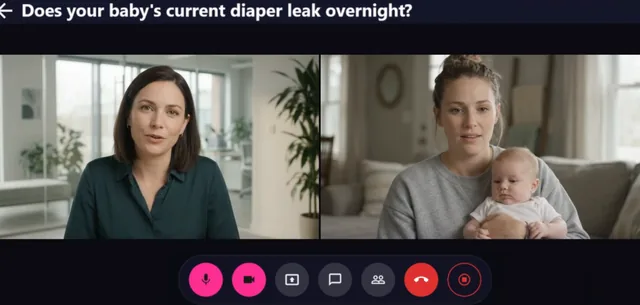
Here is an interview about a baby product that leaks overnight, as the call's page would show it. The words are made up for this example.
The transcript
Speaker 1 · 12:04
What happens on a night when it leaks?
Speaker 2 · 12:09
We change the sheets at three in the morning, and then nobody sleeps.
Speaker 2 · 12:31
I would pay more for one that lasts until morning.
Speakers show as numbers, never names.
The AI insight
- Leaks cost the household a night's sleep. A night-time leak means changing the bedding in the small hours, and the participant links that directly to what they would pay.
- Evidence in the transcript: 2 linked moments, shown with the lines around them.
- Play from here · 12:09
- Play from here · 12:31
We check every quote a finding uses against the transcript, so each one points to words that were really said.
Before and during the call
Interviews or groups, with you in charge of the room.
From two people to fifty
You book an interview and a group discussion the same way, with a time and a guest list. Name up to fifty people, or open the call to everyone in your community. You can add people while it runs.
Turn video calls on in the settings of any community that needs them.
- Up to 50 invitees
- Named guests or everyone
- Add people mid-call
Running the room
Click a person's video to put them in the spotlight. Share your screen, and decide whether anybody else can share theirs. Mute someone, or remove them and let them back in if you change your mind. Turn every camera off, or lock the room so nobody walks in partway through an interview.
Everyone in the call sees which controls are on, who set them and when, and they end with the call. Removals and locks hold whatever browser a person uses, and people can switch themselves back on after a mute or a request to turn cameras off. Chat in the call is open to everyone, or private between two people.
- Spotlight and screen share
- Lock entry, cameras and sharing
- Public and private chat
Each person agrees before they join
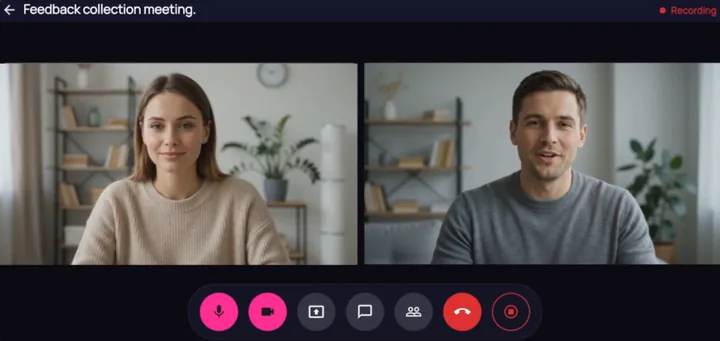
You choose whether to record when you book. If you do, every participant sees a recording notice and has to accept it before the room lets them in. The notice tells them the whole call is recorded as one video, so everyone who joins appears in it. Anyone who declines stays out of the room, and only your team sees who declined.
The recording starts when the first person joins. When you book, you choose whether it shows whoever is talking, or everyone at once beside a shared screen. Book a call without recording and nothing is kept afterwards, with no video, transcript or AI notes. People still see a short notice about the call before they join. Recording is turned on per community in its settings, and that choice applies to every call in it.
- Accepted per person
- Consent checked on entry
- Two recording layouts
After the call
Turn every call into a transcript, findings and material for your reports.
A transcript you can play from
Tick Transcribe automatically when you book, and the transcript is made the first time you open the finished call. Or make one later with the Create transcript button. Every line carries a timestamp. Tap it and the recording plays from that moment.
Speakers appear as numbers, never names, and each call starts its numbering again. Transcripts follow your community's language, and a conversation that switches into English is transcribed in both. One language is heard through a closely related one, and those transcripts are marked so you know to check the more formal words. You can read any transcript in another of the twelve languages, with every timestamp in place, and the translation is saved for next time.
- Timestamped lines
- Speakers stay anonymous
- Twelve languages transcribed
AI insights that cite their evidence
Press Generate insights and the AI reads the transcript. It returns a short list of findings, such as themes, objections, points of disagreement and moments worth watching again. Each finding shows the lines it comes from, and we check that every one is really in the transcript. Open a finding to read the lines in context, then press Play from here.
The findings come from the anonymised transcript, so check them against the recording before you quote them. If they leave a question open, press Ask about this call and the AI answers from the full transcript.
- Every finding cites lines
- Every quote checked
- Play from here
Into the rest of the study
Call transcripts and the open chat go straight into your reports and exports, and private messages stay out. Attendance shows who joined by name, but quotes from the call never name anyone. Before a report is saved, any speaker number left in it is replaced with “a participant”, so quotes stay anonymous.
- Transcripts feed reports
- Private chat stays out
- Attendance as it happened
Recordings only your team can watch
Only your team can watch a recording, and no member can, even one who was in the call. Each recording is kept apart under its own community and call, where no account can open it directly, ours included. When the community owner or a moderator you allow presses play, we check their access again and open a playback link that expires shortly after.
Delete a finished call, and its recording and transcript are deleted with it, so nothing is left behind.
- Every view checked
- Playback links expire
- Deleted with the call
At a glance
What every live call gives you.
In the browser
Interviews and groups of up to fifty, with nothing to install.
Consent per person
Each person accepts the call's notice, and we check it again as they enter.
Host tools
Spotlight, screen share, mute, remove and readmit, and locks for entry, cameras and sharing.
Timestamped transcript
Twelve languages, speakers shown as numbers, and tap any line to play from there.
Insights with evidence
Every finding points at transcript lines you can read and replay.
For your team only
Recordings play through a checked link that expires soon after.
Next up
Where to go from here.
Video answers
Ask a question. Hear the answer in their own words.
Members of your community answer on camera, in their browser. Watch each answer, turn it into text in one click, and read it in your own language.
Video answersAI across the study
AI that drafts the survey and writes up the results.
AI that drafts and translates your survey, sums up what people wrote and said on calls, and writes a report that lists everything it read and left out.
AI across the studyThe next step
Book a fit call.
Thirty minutes with the people who build Survizo. Bring a project you have coming up. You'll leave knowing whether Survizo fits it and how soon you could launch.