

Question types
Twenty-one ways to ask. Each one shows how many people answered.
Rank packs, rate ideas, see which part of an ad people notice first, or ask for an answer on camera. For each kind of question, see what members see, what you choose and the results you get back.
Seven kinds of question
What you can ask, and what each question gives you back.
Jump to choice and ranking, MaxDiff and card sorts, images and heat maps, scales, numbers and dates, grids, open text and video or files and signatures.
Choice and ranking
Four types ask people to choose or to rank. Single choice takes one answer. Multiple choice takes several. You can make an answer such as “None of the above” stand on its own, so choosing it clears every other tick.
A dropdown is a single choice shown as a menu, and its results read exactly the same way. A ranking asks people to put a list in their own order, by dragging, with the up and down buttons or with the arrow keys. A ranking only counts once the member presses “Use this order”, so your starting list is never recorded as their answer. If you make the ranking compulsory, members place every item before they move on.
On a multiple choice question, each percentage is of the people who answered, so together they can pass 100%. A ranking shows each item's average position and how often people put it first.
- Answers that stand alone
- Drag or arrow keys
- Average position and first choice
Find what matters most, and how people group things
To find what really matters in a long list, a MaxDiff question shows a few items at a time and asks which matters most and which least. Every set appears on one page, numbered Set 1 of 6 and so on. If the question is compulsory, members pick a most and a least in each set before moving on. Add three or more items and Survizo builds the sets for you, with four items in each and every item shown about three times. You can change both, up to six items a set and thirty sets. Every member sees the same sets.
A card sort asks people to put each item, such as a product or a feature, into the group where they think it belongs. People tap a group to place each card, and it works just as well with a keyboard or a screen reader. Give people your own groups to choose from. Or let each person name up to ten groups of their own, and see how they sort things in their own words. If the sort is compulsory, every card needs a group before members move on.
A MaxDiff gives each item a score, which is the times it was chosen most minus the times it was chosen least. Beside each score you see both counts and how often the item was shown, because an item shown less had fewer chances to be picked. Your spreadsheet, slide deck and statistics file all carry the same scores, so the numbers match wherever you present them.
A card sort shows each card with the groups it went into. Each group has a count and a share of the people who placed that card. Groups people named are pooled by name, whatever the capitals or spacing, so “Snacks” and “snacks” make one group. Every download lists each card and the groups people put it in.
- Most and least in every set
- Your groups or theirs
- Fair scores for every item
Images and heat maps
Image choice puts pictures side by side, such as packs, ads or concepts. You decide whether people pick exactly one or several.
A heat map shows one image and asks people to tap what stands out. You choose how many spots each person can tap, from 1 to 10. They can tap a marker to remove it, undo the last one, or clear them all.
Every member's taps build one map over your image, so the spots that grab attention show at a glance. A tap beside the image is counted and labelled but kept off the map, so the map shows only reactions to your image. The heat map reports the total clicks and how many people made them.
- 1 to 10 clicks each
- Undo and clear all
- Misses counted separately
Scales, numbers and dates
Three rating scales come ready to use. NPS runs from 0 to 10, an agree-or-disagree scale from 1 to 5 and a star rating from 1 to 5. Each shows how many people gave each score, and the average.
A slider and a number question use the lowest value, highest value, step and unit you set, such as % or hours. If someone types a number outside your range, or off your step, a message tells them what the question accepts. Members type numbers the way they write them at home, so 2,5 in one country and 2.5 in another both count as two and a half.
Both report an average, the middle answer and the range. On a scale of up to 21 points you also get a bar for each value, so a 1 to 7 slider reads like any rating scale. You can set the earliest and latest date a member may pick. It reports the earliest, latest and middle date, with a count for each month. A date stays the same day for everyone, whatever their time zone.
- Fixed 0–10 and 1–5 scales
- Your range, step and unit
- Average, middle and range
Rate many things in one go
A grid lets members rate several statements on the same scale in one go. Each row can take one answer or several. On a phone-sized screen, each row becomes its own card.
A carousel shows members one item at a time, with a picture if you like, and they rate each one on the same options. Members move with Back and Next, or with the arrow keys on a computer. Switch on auto-advance and the next item appears as soon as one is rated.
Every row shows how many people answered it, so each percentage is of the people who did.
- One or several per row
- A card per row on a phone
- A count on every row
Open text and video
Short text gives a one-line box and long text a larger one. Answers are kept word for word.
Depending on your plan, Survizo's AI can read the written answers to a question and sum them up for you. Ask for it and you get the overall sentiment and a short summary. You also get up to eight themes, each with how often it came up and a quote. On a long set of answers, the summary says how many it read, so you know exactly what it covers.
Members can answer on camera for up to 90 seconds, right in their browser. They can watch it back and record again before they submit. Video answers has its own page.
- Short or long text
- Themes on request
- Video up to 90 seconds
Files and signatures
A file upload asks for one file, such as a receipt, a photo or a document. You choose images, documents or either, and a size limit of up to 10 MB. Members can send any common photo, including iPhone photos, or everyday files such as PDF, Word, Excel and PowerPoint. Members see the limit and the types before they choose. A file of the wrong type or size gets a clear message before anything uploads.
A signature question gives people a box to sign with a finger, a pen or a mouse, and Clear lets them start again. Their signature is saved as a PNG picture, black ink on white. Files and signatures upload when the member submits, into a private folder only that member can add to. Before Survizo keeps the answer, it checks that the file belongs to that question and is a type the question takes.
In your results, each file is listed by number and type, such as File 3 (PDF). It opens with one click, through a private link that expires soon after. Signatures list the same way, as Signature 1, Signature 2 and on. Your downloads show who sent a file or signed, and point to each one. The files themselves stay safely in Survizo, where your team opens them, so they never travel around in a download.
- Up to 10 MB a file
- Checked against the question
- Opened with one private click
A worked example
A heat map, from the member's screen to your results.
The question and numbers are made up for this example. The instructions, click counter and buttons are exactly what members see.
What the member sees
Which part of this pack would you read first?
Tap the image on the spots that stand out to you (up to 5).
3 of 5 clicks. Undo. Clear all.
Survizo writes that instruction for you, or you can write your own.
What you get back
| On the results card | Count |
|---|---|
| Clicks on the image | 412 |
| Members who clicked | 103 |
| Clicks beside the image, counted separately | 9 |
- All 412 clicks drawn as one heat map over your image.
- In your Excel download, one column holds each member's clicks, headed with the question's code.
- A click whose spot on the image is unclear is still counted, and both your results and your download say so.
Illustrative numbers.
After the answers
Every answer comes out in the same results and downloads.
Name each question once, and see it in every file
Give each question a short code, such as SATISFACTION, and it heads that question's column in every download. Leave it blank and Survizo numbers it for you, as Q1, Q2 and so on.
Your Excel download has one row per member's response, with a second sheet that turns every numbered answer back into words.
- Your code, or Q1, Q2
- One clear column per answer
- A sheet that explains every number
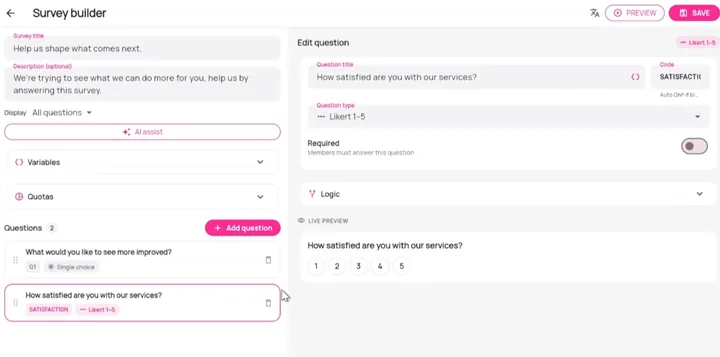
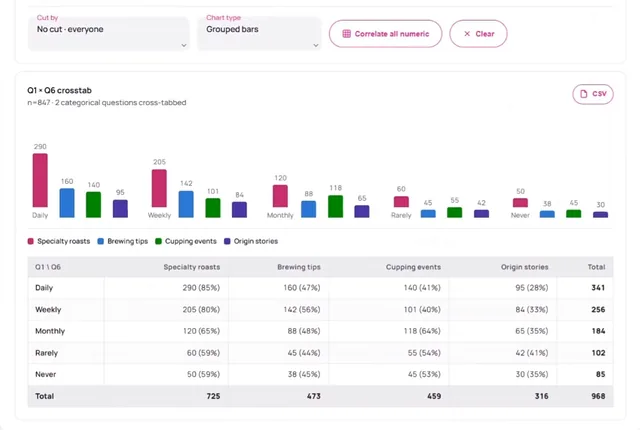
See how many people answered every question
Each question shows how many people answered it. Where people can pick several answers, percentages are of the people who answered, and every download says so. An option nobody chose shows as zero. Tied answers keep the same order on screen, in downloads and in slides, so your charts and tables always match.
Results for rankings, sliders, numbers and dates appear in every download, in the slide deck and when you compare groups of members.
- Percentages of people
- Zeros shown
- Same order everywhere
Show a picture, product or prototype first
You can show something above any question for people to react to. Show images that open full screen with pinch and double-tap zoom, a 3D model people turn with a finger or a mouse, or a clickable prototype.
You can offer a survey in twelve languages, with every question, answer and unit translated. Tell Survizo what you want to learn, or hand it your Word document, and its AI drafts the questions for you to approve one by one.
- Images with zoom
- 3D models and prototypes
- Twelve languages
A second example
A ranking, and the table it produces.
One hundred members each put four things in order. The numbers are made up for this example.
What the member sees
What matters most when you choose a coffee?
Price. Taste. Pack size. Recyclable pack.
Use this order
Items move by dragging, by their up and down buttons, or with the arrow keys.
What you get back
| Item | Average position | First choice |
|---|---|---|
| Price | 1.9 | 41 (41%) |
| Taste | 2.2 | 30 (30%) |
| Pack size | 2.8 | 17 (17%) |
| Recyclable pack | 3.1 | 12 (12%) |
Sorted by average position. Add an item after the survey goes live and it shows how many people ranked it, so its average is never compared unfairly with the rest.
Beyond questions
Other ways members take part.
These happen outside a survey, and each one has its own page.
Polls in the feed
One vote per member, with results that move as votes come in.
Discussion rooms
Private rooms that only the members you invite can see.
Direct messages
Members message each other, and your team, inside one community.
Live interviews and groups
Invite-only sessions in the browser, from one-to-one up to fifty people.
Video answers
A survey question answered on camera, kept with the rest of the response.
Content
Posts, videos and courses, and each member's progress is saved as they go.
At a glance
What you get, in six facts.
Twenty-one types, seven kinds
Choice, trade-offs and card sorts, images, scales, grids, open text and video, and files and signatures.
A count on every question
Every question and every grid row shows how many people answered it.
Heat maps that show misses
Clicks beside the image are counted and labelled, but kept off the map.
Ranges you set
Set the range and unit on sliders and numbers, and the dates people can pick.
One code, in every download
The short code you give a question heads its column in every download.
Twelve languages
Question text, options, units and placeholders translate with the survey.
Next up
Where to go from here.
Surveys and logic
Write your survey once. Each member sees only the questions meant for them.
Build a survey or import the one you wrote in Word. Members see only the questions meant for them, and each group stops at exactly the number you need.
Surveys and logicAnalysis and exports
Numbers you can stand behind, in files that match what you saw.
See how many people stand behind every chart, compare groups of members, and send PowerPoint, Excel and SPSS files that match the screen exactly.
Analysis and exportsThe next step
Book a fit call.
Thirty minutes with the people who build Survizo. Bring a project you have coming up. You'll leave knowing whether Survizo fits it and how soon you could launch.