

Surveys and logic
Write your survey once. Each member sees only the questions meant for them.
Build a survey question by question, or import the one you already wrote in Word. Next to each question, set who skips ahead, who doesn't qualify and how many answers you need from each group. Survizo checks those rules as you write and applies them as each member answers.
Importing from Word
Turn your Word questionnaire into a draft survey you approve first.
Most surveys start life as a Word document. Bring yours exactly as it is.
Choose the Word file
Pick your Word file in the survey builder. Survizo reads every part of it, from headers and footers to notes, text boxes and numbered lists, and tells you what it found.
Keep working while it reads
Survizo's AI handles even a long document, reading it section by section and putting it back together for you. A progress line shows which section it is reading and how many questions are in so far. The import runs in the background while you keep working. Stop it at any point and you keep what has already arrived.
Check what came back
Survizo counts the questions in your document, checks them against the draft and names any question or skip instruction it missed. Any question in a format outside the twenty-one types, such as a trade-off exercise, is flagged by name, so you know exactly what to set up yourself.
Confirm
Your draft changes only when you confirm. Your question codes stay exactly as you wrote them. Quota targets and any values you track behind the scenes come across with the questions. Skip instructions that jump to a later section are connected once the whole document has been read.
A worked example
A short script, and the survey and data file it becomes.
Here is a made-up script, the survey it turns into and the columns in its data file. Importing it or building it by hand gives the same result.
The script
S1. Do you own a smartwatch?
1 Yes 2 No
IF S1 = 2, SCREEN OUT.S2. Which of these do you use it for? (Select all)
1 Heart rate 2 Sleep 3 PaymentsS3. How likely are you to recommend it? (0 to 10)
IF S3 < 7, GO TO S5.QUOTA Owners: S1 = 1, 200 completes.
Illustrative script, not a real study.
In the builder
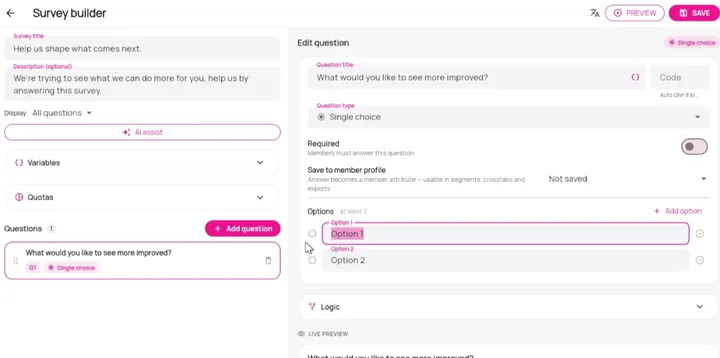
- S1 becomes a single choice with one rule. Anyone who answers No finds out at once, and their survey ends.
- S3 is an NPS question from 0 to 10. If S3 is less than 7, jump to S5.
- A quota called Owners stops at 200 people who answered Yes to S1.
In the Excel data sheet
| Column | Holds |
|---|---|
| S1 | 1 for Yes, 2 for No |
| S2_1, S2_2, S2_3 | 1 when that option was chosen, blank when not |
| S3 | The score, 0 to 10 |
A second sheet in the same file turns every number back into the answer it stands for.
In detail
What each part of the builder does for you.
Questions that fit each member's answers
Add rules to any question to decide what each member sees next, based on their earlier answers or on a value you track behind the scenes. A rule can skip ahead, end the survey, record a value, or show or hide its own question. A fallback step catches anyone none of your rules apply to, so nobody falls through the gaps. Tracked values can steer a member's path, and they are saved with that member's answers.
You only see conditions that fit the question. Conditions such as “Ranked first” appear only on a ranking, and “Greater than” only where the answer is a number, a score or a date. If a question has a set list of answers, you pick the value from that list instead of typing it.
Rules run on the member's screen as they answer. Anyone who doesn't qualify is told at that question, so nobody answers ten more for nothing. Answers left on a path the member ended up skipping are removed before they submit. Each question's results count only the people meant to see it.
- Jumps always go forward
- Show and hide
- Non-qualifiers stop at once
Mistakes caught before any member sees them
Survizo flags broken logic as you edit, in a Logic check panel. It catches a jump that points backwards or nowhere, and a rule that names a question that doesn't exist. It catches a rule that looks for an answer the question doesn't offer, or a question whose own answer would hide it. It also flags broken settings, like a slider whose maximum isn't above its minimum, or a variable name used twice. Rename an answer and the panel lists every rule and quota that used it.
A Variables panel shows where each tracked value is filled in and used, and warns you about any value no rule ever fills. Preview runs the survey exactly as a member sees it, unsaved edits included, and leaves your data and quotas untouched. Before launch, you can clear out any test responses sent through the live survey. Before anything is deleted, Survizo shows the survey name and exactly how many responses will go.
- Seven checks, live
- Renamed answers flagged
- Preview leaves no trace
Quotas that stop at exactly the number you set
Set a quota by naming a group, picking the answer that defines it and choosing a limit, such as 200 smartwatch owners. When a member finishes, Survizo checks their answers against your quotas to see which group they belong to. It counts finished surveys into each group one at a time, so a group fills to exactly its limit, even when many members finish at once.
A member who finishes after their group is full is told straight away that their answers weren't recorded, so your totals stay at the limit you set. Each member responds to a survey once, and a closed survey stops taking answers. Change a limit while the survey is live and the next response counts against the new number.
- Counted one at a time
- Groups stop at their limit
- New limits apply at once
Name your questions, and replay earlier answers
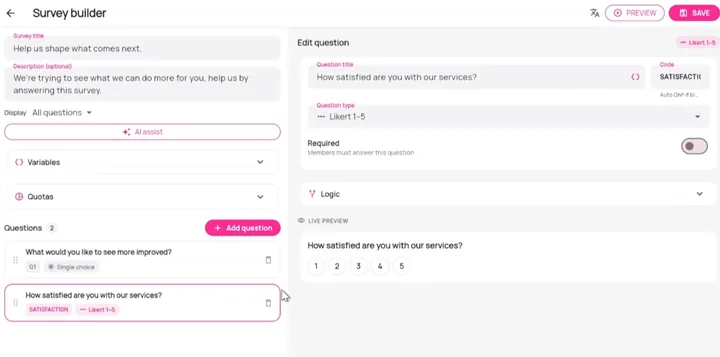
Every question has a code. Type your own, such as SATISFACTION, or leave it blank and it becomes Q1, Q2 and so on by position. Rules and quotas refer to questions by their code. Choose an earlier question and its answer appears in a later question's wording, so each member sees their own words played back. Tracked values work the same way, in the wording, the instructions and the answer labels.
The codes travel with your data. In the Excel download each question gets its own column, a pick-several question gets one column per option, and a second sheet explains every number. The SPSS file your analysts use has the same columns, with every question and answer already labelled. Systems you connect to Survizo receive responses under the same codes.
- Your codes, or Q1, Q2
- Replay an earlier answer
- Codes in Excel, SPSS and your systems
One survey, twelve languages
Write the survey once in a base language, then translate it. There are twelve languages to choose from. Press Translate with AI and Survizo drafts the wording, then someone on your team accepts or rejects each line before members see it. Run it again and it fills only the gaps, leaving wording someone has already fixed exactly as it is. Any line left untranslated shows in your base language, so no member meets a blank question.
A survey can open with a language question, a consent step and an introduction. Use any of them, and members always meet language first, consent second and the introduction third. The language question offers the languages you've supplied. A French answer and an English answer are saved as the same choice, so one rule, one quota and one data column cover every language. Numbers appear in the format each member is used to, and they can type them that way too.
- Twelve languages
- A person approves
- One data file for every language
Show members exactly what you are testing
Put the real thing above any question for members to react to. It can be one or more images that people open full screen and zoom into. It can also be a 3D model of your product that members turn in any direction, or a Figma prototype they click through. We check a 3D file before it uploads, so a bad file is caught at your desk, before any member opens it.
When members click through a Figma prototype, Survizo records what they do. Their clicks, their missed clicks, the screens they visit and the time on each are stored with their answers. The questions below it work like any others, with the same rules, quotas and exports. You can also give one survey its own colours and logo, for a single product test, while the rest of your community keeps its usual look.
- Images with zoom
- A 3D model to turn
- Figma, measured
At a glance
What the survey builder gives you, in six facts.
Twenty-one question types
Choice, ranking, best-versus-worst trade-offs, card sorts, scales, numbers, dates, grids, images, text, video, files and signatures. See each type.
Logic checked as you write
Survizo flags broken skips and rules that point to missing questions or answers while you edit.
Quotas that hold
Each group fills to exactly the number you set, even when many members finish at once.
Word script import
Bring in your Word survey, with a check that names anything missed.
Twelve languages
AI drafts each translation, your team approves it, and every language lands in one set of results.
Your question codes in every file
Excel, SPSS and your connected systems name answers by question code. Analysis and exports.
Next up
Where to go from here.
Question types
Twenty-one ways to ask. Each one shows how many people answered.
Let people rank, rate, tap a pack or answer on camera. Twenty-one question types, each showing how many people answered, on screen and in every download.
Question typesAnalysis and exports
Numbers you can stand behind, in files that match what you saw.
See how many people stand behind every chart, compare groups of members, and send PowerPoint, Excel and SPSS files that match the screen exactly.
Analysis and exportsThe next step
Book a fit call.
Thirty minutes with the people who build Survizo. Bring a project you have coming up. You'll leave knowing whether Survizo fits it and how soon you could launch.